Project Mode
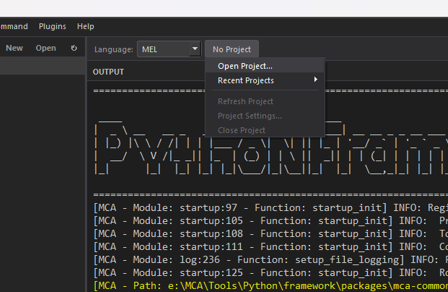
Project Mode turns MCA Editor into a lightweight IDE. Open a folder, browse your file tree, and work across multiple files with project-wide search.
Opening a Project
- File > Open Project or Ctrl+Shift+O
- Select any folder on disk
- MCA Editor scans the folder and displays its contents in the sidebar
You can also create a new project from File > New Project, which generates a .mca-project configuration file.
The Sidebar
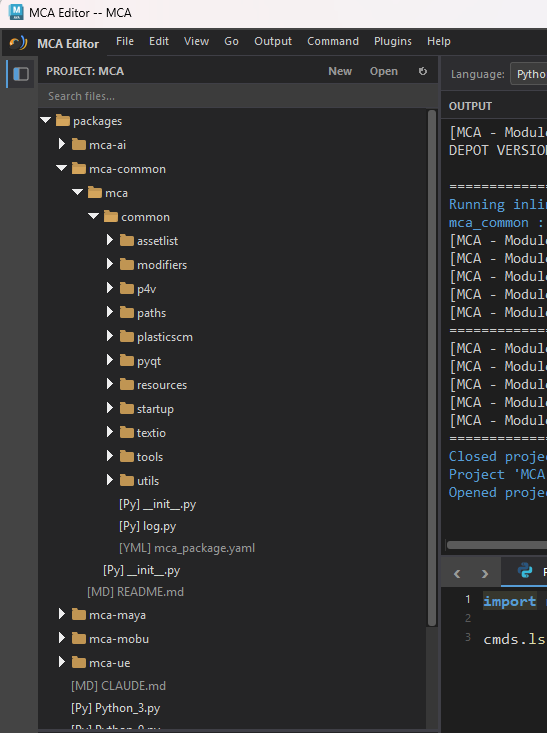
When a project is open, the left sidebar shows your file tree:
- Click a file to open it in the editor
- Double-click to pin it (single-click opens in preview mode)
- Folders expand and collapse
- Files are filtered — common non-code files and folders are hidden by default
Quick Open
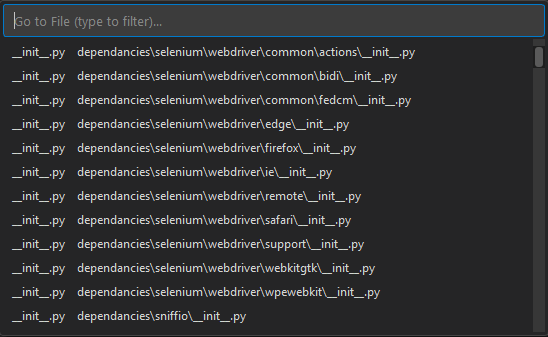
Press Ctrl+P to open the Quick Open dialog. Start typing a filename to fuzzy-search across your project. Press Enter to open the selected file.
This is the fastest way to navigate large projects.
Find in Files
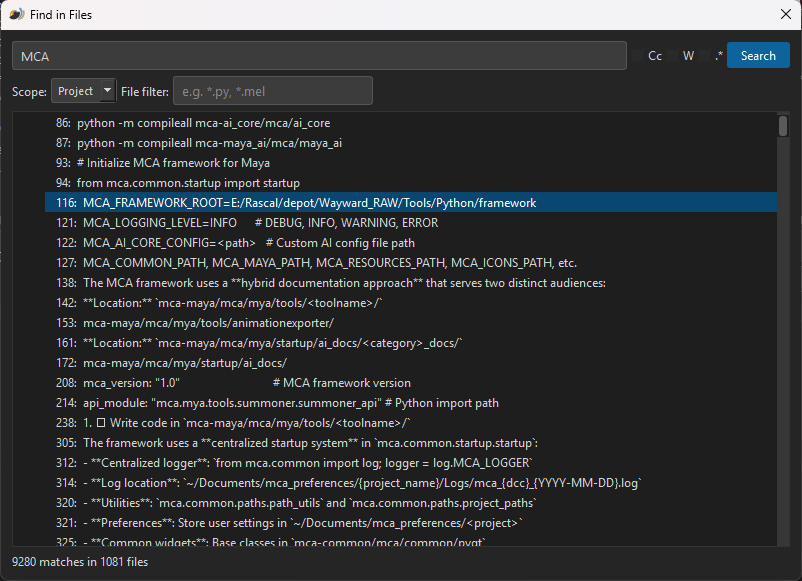
Press Ctrl+Shift+F to search across all files in your project.
- Supports regex patterns
- Results grouped by file
- Click a result to jump directly to that line
Project Settings
Right-click the project name in the toolbar and select Project Settings to open the settings dialog.
General
| Setting | Description |
|---|---|
| Project Name | Display name shown in the toolbar and title bar. |
| Python Paths | Directories added to sys.path when the project is open. Scripts in these folders can be imported directly. Paths are relative to the project root. |
| Excluded Folders | Folder names hidden from the sidebar and search results (e.g., .git, __pycache__, node_modules). |
| Open on Editor Open | Automatically open this project when MCA Editor launches. |
| Auto Reload Modules | Automatically call importlib.reload() on modified modules when you save or execute a file. |
Profiles
Project settings support DCC-specific profiles so the same project can behave differently in Maya 2024, Maya 2025, Unreal Engine, or standalone mode. Each profile can configure its own startup/shutdown behavior and environment variables.
MCA Editor automatically selects the correct profile based on which DCC is running (e.g., Maya2025, UE5). A default profile is used as a fallback.
| Setting | Description |
|---|---|
| Startup Script | A Python file (relative to project root) that runs when the project opens. Use this to set up your environment, import libraries, or initialize tools. |
| Startup Code | Inline Python or MEL code that runs after the startup script. Useful for quick setup without a separate file. |
| Shutdown Script | A Python file that runs when the project closes. Use this to clean up resources, save state, or tear down connections. |
| Shutdown Code | Inline Python or MEL code that runs before teardown on project close. |
| Environment Variables | Key-value pairs set in os.environ when the project is open. Removed when the project closes. |
| Load Immediately | Skip startup scripts on open. The project's paths and environment are set up, but startup code is deferred until you click the Load button in the toolbar. |
The .mca-project File
All settings are stored in a .mca-project JSON file in your project's root directory. You can edit this file directly or through the settings dialog. It is safe to commit this file to version control.
Project Lifecycle
Understanding what happens when a project is opened, closed, and refreshed helps you write effective startup and shutdown scripts.
Open
When you open a project, MCA Editor performs these steps in order:
- Python paths are injected — Every directory listed in Python Paths is added to
sys.pathboth locally and in the connected DCC (Maya, Unreal, etc.). This means you canimportyour project's modules immediately. - Environment variables are set — Every key-value pair in Environment Variables is written to
os.environ. If a variable already existed, its original value is saved so it can be restored on close. - Startup script runs — If a Startup Script is configured, MCA Editor reads the file and executes it in the connected DCC (or locally if no DCC is connected).
- Startup code runs — If Startup Code is configured, it runs after the script file. This can be Python or MEL.
If Load Immediately is enabled, steps 4 and 5 are skipped. The environment is fully set up (paths, env vars, UI), but startup scripts are deferred until you click the Load button in the toolbar.
Already active?
If MCA Editor detects that the project's environment is already set up (all env vars match and all Python paths are already in sys.path), startup scripts are skipped to avoid double-loading. This commonly happens in Maya when the project's environment was set up by another tool before the editor opened.
Close
When you close a project (or open a different one), the teardown runs in this order:
- Shutdown script runs — Executed while paths and env vars are still active, so your shutdown code can use project imports and environment variables.
- Shutdown code runs — Inline shutdown code runs after the script file.
- Environment variables are restored — Variables that existed before the project opened are restored to their original values. Variables that were created by the project are removed entirely.
- Python paths are removed — All project paths are removed from
sys.pathand cleared from the DCC adapter. - Sidebar resets — The file tree returns to the default scripts workspace.
Refresh
Clicking Refresh in the project menu (or via the toolbar) re-reads the .mca-project file from disk and re-applies everything. This is useful when you've edited the project file by hand or changed settings that need to take effect immediately. The refresh cycle runs a mini close/open: environment variables and paths are removed, the file is re-read, and then everything is re-applied — including re-running startup scripts.
Startup and Shutdown Scripts
Startup and shutdown scripts are regular Python files that run inside the connected DCC. They are your hook into the project lifecycle.
Common Use Cases
Startup scripts are ideal for:
- Importing your project's core libraries so they're ready in the DCC
- Registering custom menus, shelves, or toolbar buttons in Maya
- Setting up logging or debug configuration
- Loading saved scene state or project preferences
Shutdown scripts are ideal for:
- Removing custom menus or UI elements you created on startup
- Saving project-specific state (e.g., user preferences, last-used settings)
- Cleaning up global variables or connections
- Tearing down any background processes your tools started
Example: Maya Startup Script
A startup script at scripts/startup.py that registers a custom Maya shelf:
import maya.cmds as cmds
import maya.mel as mel

# Build a project shelf with commonly used tools.
if cmds.shelfLayout("MyProject", exists=True):
    cmds.deleteUI("MyProject")

mel.eval('addNewShelfTab "MyProject"')

# Add buttons for project-specific tools.
cmds.shelfButton(
    parent="MyProject",
    label="Build Rig",
    command="from my_project.rigging import build; build.run()",
    image="kinJoint.png",
)
Example: Maya Shutdown Script
A matching shutdown script at scripts/shutdown.py:
import maya.cmds as cmds

# Remove the project shelf on close.
if cmds.shelfLayout("MyProject", exists=True):
    cmds.deleteUI("MyProject")
Tips
- Startup scripts run after Python paths are injected, so you can import from your project's packages.
- Startup scripts run after environment variables are set, so
os.environhas your project's values. - Shutdown scripts run before paths and env vars are removed, so cleanup code can still use project imports.
- If a startup or shutdown script file is missing, MCA Editor logs a warning and continues — it won't block the open or close.
- Both script and inline code are executed through the active DCC adapter. If no DCC is connected, they run in the editor's local Python interpreter.
Multi-Tab Editing
In Project Mode, each open file gets its own tab. You can:
- Split the editor — Drag a tab to the side to create a split view
- Multiple editor groups — Work on two files side by side
- Modified indicator — Tabs show a dot when they have unsaved changes
When to Use Project Mode
Project Mode is ideal for:
- Maya tool development
- Pipeline scripts with multiple files
- Any work that spans more than a couple of files
- When you need project-wide search